
Gmail
Google LLCCommunication
4.1425.71K Reviews
- Version
- Varies With Device
- Installs
- 10.00B
- Age Rating
- Everyone
Screenshots

Our Review of Gmail
 Analysis by Appyee
I use Gmail as a practical home base for messages that need more than a quick glance: work threads, receipts, school updates, travel details, and notes from people I know. It is a free communication app from Google LLC, and its appeal is less about doing one unusual thing than about making everyday email easier to sort, find, and act on. If your messages already sit in a Google-centered routine, it can feel especially convenient; if you want a quiet inbox with very little automation, some of its sorting choices may take adjustment.
The everyday workflow I rely on
My usual routine is simple: scan the inbox, deal with anything urgent, and leave messages that need more time for a deliberate second pass. Gmail’s tabs can help separate personal mail from social notifications and promotions, but I treat them as a first filter rather than a perfect filing system. A message can land somewhere unexpected, so I still check the other tabs when I’m waiting for something important.
That distinction matters for practical tasks. If I’m expecting a booking confirmation, I search for the sender or a distinctive word rather than assuming the newest message will be at the top of Primary. Search is one of Gmail’s strongest everyday tools, especially when I remember a fragment of the subject but not the exact date. It is often faster than scrolling through months of mail.
A realistic example: I can open a thread about a family trip, find the latest confirmation, and search the same account for a separate receipt without keeping either message pinned in my memory. When a reply needs more than a sentence, I leave it for a focused moment instead of firing off a rushed response. That small habit keeps quick replies useful without letting them replace careful ones.
A User-Friendly Interface
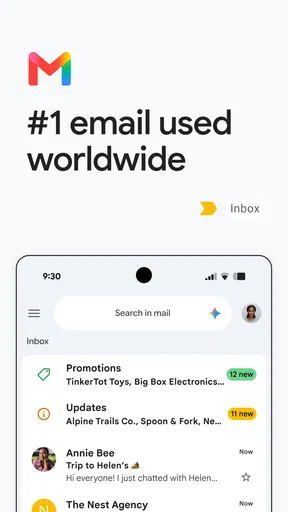
First things first, the user interface is nothing short of intuitive. As soon as you open the app, everything just feels right. The layout is clean and straightforward, with your inbox displayed prominently. You can easily switch between different tabs like Primary, Social, and Promotions, which helps in filtering out the noise from what really matters. It's like having an organized digital filing cabinet right in your pocket.
The app also offers a dark mode, which is a blessing for night owls like me who check emails at ungodly hours. This feature not only saves your eyes but also conserves battery life.
Settings I would check early
Before relying on notifications, I’d spend a moment choosing which messages deserve an interruption. Gmail lets you customize notifications, so it is worth deciding whether you want alerts for every incoming email or only the ones you consider important. The best choice depends on the account: broad alerts can help when you are coordinating a busy project, but they can make a newsletter-heavy inbox feel relentless.
I also recommend checking swipe actions. A swipe can be set to do useful inbox work, such as archiving or deleting, but the right action depends on how you process mail. I prefer a setting I can use confidently without needing to inspect every message afterward. If you often swipe by accident, choose a less destructive action or slow down before clearing a crowded list.
Labels and filters reward a little planning. Rather than creating a label for every sender, I’d start with a few recurring categories that match real decisions: messages to revisit, ongoing work, or records I may need later. A filter can route predictable mail into a label, but over-filtering has a cost: important messages become less visible if they disappear from the part of the inbox you check most. I treat automation as a filing assistant, not permission to stop looking.
Smart Features That Save Time
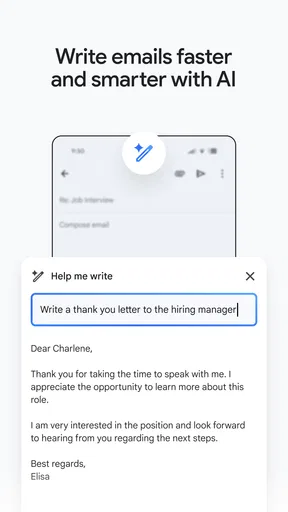
If you're anything like me, you're all about efficiency. Gmail offers a host of smart features designed to save you time and effort. One of my favorites is Smart Reply. This nifty feature suggests quick responses to emails, making it easier to shoot off a reply when you're in a rush.
Another gem is Priority Inbox, which automatically sorts your emails by importance. It's like having a personal assistant who knows exactly what you need to focus on. And don't even get me started on the search functionality. With Google's powerful search engine integrated, finding that important email from months ago is a breeze.
Small habits that make the inbox faster
My most useful Gmail shortcut is not a clever setting; it is using search before opening folders. When I know the sender, a likely subject word, or even a phrase from the conversation, searching directly can beat navigating through labels and dates. I also try to keep a thread together by replying within it when the topic has not changed. That makes the conversation easier to follow later, especially when several people are involved.
For messages that need action, I avoid treating the inbox as a complete task manager. A message can be easy to find and still be easy to forget. I use labels or a deliberate second pass to distinguish “read” from “handled,” and I archive mail once I no longer need it in the active inbox. This is a useful trade-off: the inbox stays calmer, while search remains the route back to older details.
Smart Reply is handy for acknowledgements and straightforward answers, but I would not use a suggested response for anything sensitive, emotionally delicate, or dependent on details from the whole thread. A few taps saved are not worth sounding abrupt or agreeing to something I have not checked. I treat the suggestions as a starting point, not as a substitute for reading.
Seamless Integration with Google Services
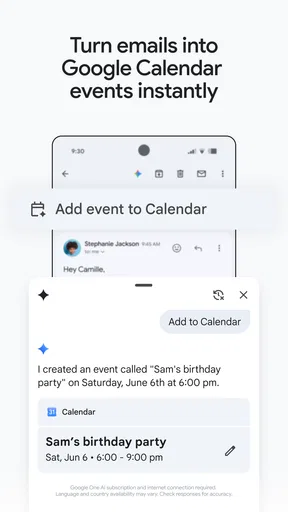
Let's talk about how beautifully Gmail integrates with other Google services. If you're using Google Drive, Calendar, or Google Meet, you're in for a treat. Attaching files from Drive is as simple as a few taps. Scheduling meetings? You can do that directly from the app and add them to your Google Calendar. It's all interconnected, making your digital life smoother than ever.
Plus, if you're a fan of Google Meet, you can start a video call directly from an email thread. No more switching between apps or copying links. Everything is right there, at your fingertips.
This connected workflow is most valuable when the people you work with already share files and calendar plans through Google services. For instance, I can handle a message about a document and keep the file close to the conversation instead of searching across unrelated apps. But that convenience is not universal: if your household or workplace organizes everything around another provider, Gmail’s built-in links may not reduce much friction. I would choose it for the way it fits your existing routine, not just because integration sounds appealing.
Where Gmail can feel less ideal
Gmail is a strong general-purpose choice, but its sorting and suggestions do not always match how I personally rank messages. Tabs and priority decisions can help with volume, yet they can also create a blind spot if I assume every important message will surface in the same place. A quick check of the other inbox categories is a sensible habit when timing matters.
It may not be the best fit if you want every email shown in one straightforward chronological stream with minimal categorization. A different mail app may suit you better if you prefer a particular provider’s interface, need a workflow built around non-Google services, or simply dislike suggested replies and automated sorting. Gmail remains usable without leaning heavily on those features, but it takes a little setup to make the experience feel predictable.
It is also worth separating email convenience from account security. Two-step verification and suspicious activity alerts can add reassurance, while careful judgment still matters when opening unexpected attachments or following requests for sensitive information. Confidential mode can be useful for controlling how a message is handled, but I would not treat it as a guarantee that a recipient cannot capture or share what they see. For genuinely sensitive communication, the message itself and the recipient still deserve careful thought.
Security and Privacy
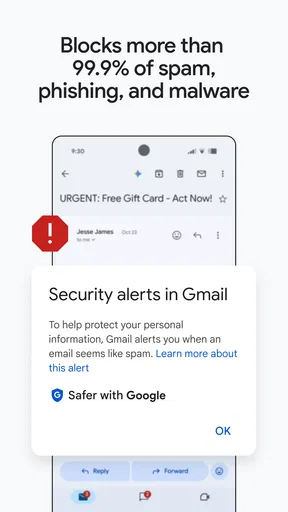
In this age of digital privacy concerns, Gmail takes your security seriously. Features like two-step verification and suspicious activity alerts give you peace of mind. Plus, the app uses machine learning to detect and block spam before it even hits your inbox. It's like having a digital bouncer keeping the riff-raff out.
And let's not forget about the confidential mode, which allows you to send emails that can self-destruct after a certain period. It's perfect for when you need that extra layer of security.
Choosing it for the right kind of email life
I think Gmail is particularly useful for students juggling class announcements, group discussions, and personal mail, as well as for people who receive a steady stream of receipts and service updates. Search and labels help when a message is a record you may need later; the tabs help keep routine bulk mail from competing with direct conversations. People who mostly send occasional notes and receive little mail may not need to build a complicated system at all.
For a team, the choice depends on more than the app. Gmail can make individual email handling and Google-service coordination convenient, but it does not automatically solve unclear responsibilities or crowded conversations. If a group relies on another email provider or a dedicated shared communication tool, switching everyone just for one person’s preference may create more trouble than it removes. I would compare the whole group’s habits, not only the inbox interface.
Gmail is free, rated for everyone, and has been available since September 21, 2010. Its scale is striking: it has more than 10 billion installs, around 14 million ratings, and an average rating of 4.1. I see those figures as evidence of how widely used it is, not proof that its workflow will suit every person. The app has around 423,000 written reviews, but my recommendation still comes down to whether its search, sorting, and Google connections fit the way you handle messages.
Customization: Make It Your Own
If you're someone who likes things a certain way, you'll love the customization options Gmail offers. From changing the theme to adjusting swipe actions, it's all about making the app work the way you want it to. You can even customize notifications so that you only get alerted for important emails. It's these little touches that make Gmail not just an app, but an extension of your personal style.
Not to mention, there's a whole world of labels and filters to explore. Once you set them up, you'll wonder how you ever lived without them. It's like having your own personalized email butler.
My verdict after making it a routine
So, is Gmail worth your time? Absolutely. It's not just an email client; it's a productivity powerhouse wrapped in a user-friendly package. Whether you're sorting through work emails, planning your next big trip, or just trying to keep up with friends and family, Gmail has got you covered. Trust me, once you start using it, you'll wonder how you ever got by without it. Ready to give it a spin? You can download it for Android or iOS and experience the magic for yourself!
What I would decide before switching
If you are moving from another mail app, I would first ask whether you want to change how you manage email or merely want a new screen for the same routine. Gmail is most convincing when its search, labels, and connections to Google services solve a recurring problem. If you only want a single chronological list and already have a comfortable system elsewhere, changing apps may not improve much.
I would also test the notification and sorting choices for a few days before trusting them with time-sensitive mail. Keep an eye on where expected messages appear, then adjust tabs, alerts, or filters based on what you actually receive. That brief trial is more useful than building an elaborate setup on day one, and it makes it easier to tell whether Gmail’s automation is helping or simply moving the clutter around.
Getting comfortable without overbuilding
The temptation with labels and filters is to organize every message perfectly. I have found that a small, stable system is easier to maintain: use a few labels for ongoing topics, let search handle one-off retrieval, and archive messages once they no longer need attention. If a filter hides mail you later wish you had seen, revise it rather than adding another workaround. Gmail is flexible, but flexibility only pays off when the system remains understandable to you.
That is why I would recommend it to someone who wants a capable everyday inbox and is willing to shape a couple of settings around personal habits. I would steer away from it if email itself is not a central part of your routine, or if the Google-oriented workflow feels like an extra layer rather than a convenience. For me, the best result comes from using Gmail as a dependable place to communicate and retrieve information, while keeping human judgment in charge of what deserves attention.
Privacy and Permissions
See what permissions an app requests and how it handles your data.
- Identity
- find accounts on the device, add or remove accounts, read your own contact card
- Calendar
- read calendar events plus confidential information, add or modify calendar events and send email to guests without owners' knowledge
- Contacts
- find accounts on the device, read your contacts, modify your contacts
- Phone
- directly call phone numbers, read phone status and identity
- Photos/Media/Files
- read the contents of your USB storage, modify or delete the contents of your USB storage
- Storage
- read the contents of your USB storage, modify or delete the contents of your USB storage
- Camera
- take pictures and videos
- Microphone
- record audio
- Wi-Fi connection information
- view Wi-Fi connections
- Device ID & call information
- read phone status and identity
- Other
- view network connections, create accounts and set passwords, pair with Bluetooth devices, change network connectivity, measure app storage space, full network access, change your audio settings, control Near Field Communication, read sync settings, run at startup, reorder running apps, use accounts on the device, control vibration, prevent device from sleeping, toggle sync on and off, install shortcuts, read Google service configuration
Verdict
Strengths of Gmail
- Intuitive and user-friendly interface.
- Seamless integration with Google services.
- Efficient spam filtering system.
- Offline access to emails available.
- Customizable notifications and labels.
Limitations of Gmail
- Limited storage without subscription.
- No direct customer support for free users.
- Ads in the free version can be intrusive.
- Occasional syncing issues with contacts.
- Limited sorting options for emails.
Other Releases by Google LLC
View All
Google Calendar
Productivity4.6

Google Messages
Communication4.6

Tools4.0

Google TV
Video Players & Editors3.9
Similar Picks in This Category
View AllGoogle Messages
Google LLC4.6

Google Meet
Google LLC4.4

Google Chrome
Google LLC4.1

WhatsApp Messenger
WhatsApp LLC4.6

Carrier Services
Google LLC4.2

Contacts
Google LLC4.3
You May Also Like
View All


Frequently Asked Questions
What features does the Gmail app offer?
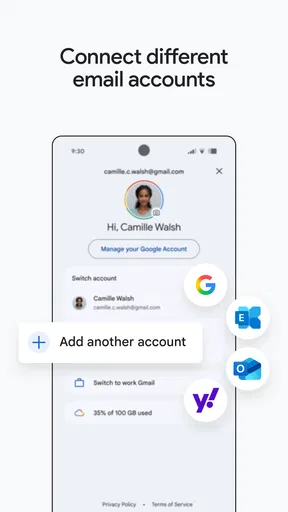
The Gmail app provides a comprehensive email experience, including features like customizable notifications, smart replies, and email organization through labels and tabs. It also offers integration with Google services like Drive and Calendar, allowing users to manage their communications and schedules efficiently. The app supports multiple accounts and is available on both Android and iOS.
Is Gmail secure for personal and professional use?
Yes, Gmail employs robust security measures, including two-factor authentication, spam filtering, and encryption of emails in transit. Google's advanced security infrastructure is designed to protect user data against unauthorized access. For professional use, Gmail offers additional tools through Google Workspace, which includes enhanced security features and administrative controls.
How can I manage my storage space in Gmail?
Gmail provides 15 GB of free storage space shared across Google services. Users can manage storage by deleting unnecessary emails, especially those with large attachments, and using Google Drive for file storage. The app also offers options to purchase additional storage through Google One if needed, ensuring users can maintain their email archives effectively.
Can I use Gmail offline?
Yes, Gmail offers an offline mode that allows users to read, respond to, and search their emails without an internet connection. To enable this feature, users need to activate offline access in their settings. This is particularly useful for frequent travelers or users with intermittent internet access, ensuring continuous email productivity.
Are there customization options available in the Gmail app?
The Gmail app allows for various customizations, including themes, notification settings, and swipe actions for organizing emails. Users can adjust their inbox layout, choose their preferred display density, and set up custom labels and filters to streamline their email management. These options help tailor the app to individual preferences and improve usability.
